How to Download Instagram Videos to iPhone and iPad
Due to Instagram's privacy policies, users cannot directly save photos and videos to their iOS devices. The most effective solution is using our web-based tool, which allows you to bypass these restrictions and download any Instagram content to your iPhone or iPad gallery effortlessly.
IG Downloader is the ultimate solution for iOS users, enabling the download of Reels, Stories, and IGTV videos in crystal-clear HD quality. Our platform is fully compatible with Safari and other mobile browsers, allowing you to save Instagram media directly to your Camera Roll without any software or app installation.
How to get Instagram video links
Note: IG Downloader allows you to save any content including regular videos, Reels, Stories, and IGTV with the same simple steps.
- First, you need to get the URL of the Instagram video you want to download (Follow the quick guide below).
- Open the Instagram app, find your video, tap the (...) icon, and select Copy Link.
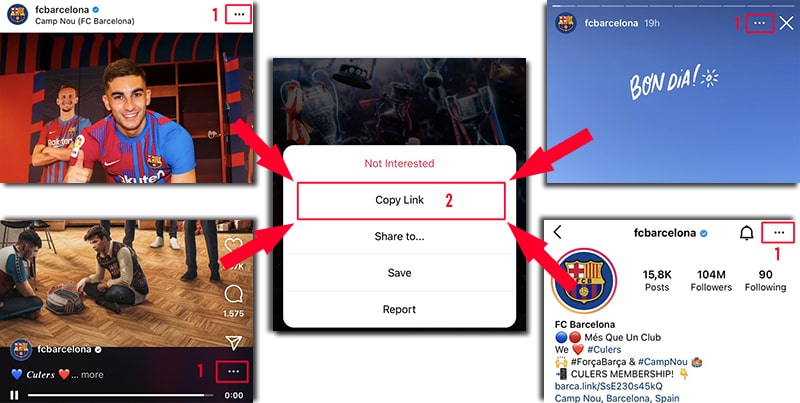
Once you have the link, follow either of the two methods below to save the video to your iPhone or iPad gallery.
Method 1: Compatible with iOS 13+ and iPadOS 13+
Starting from iOS 13 and iPadOS 13, Safari includes a Download Manager that allows you to download files directly. You can track, delete, and manage your downloads easily. All saved content is accessible via the Files app on your iPhone or iPad.
Guide to downloading Instagram videos via Safari:
Step 1: Access IG-Downloader.to using Safari on your device.
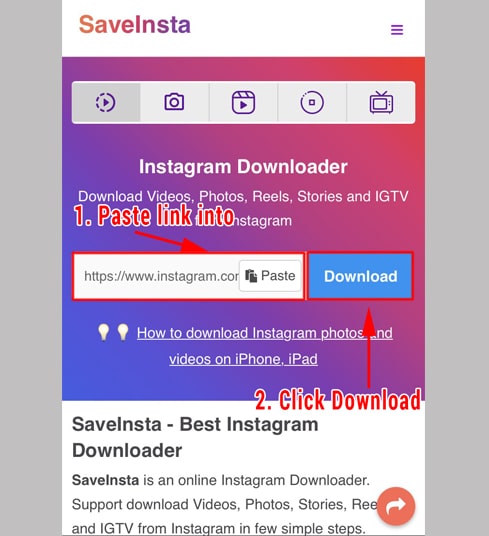
Step 2: Paste the Instagram link into the input field and tap Download.
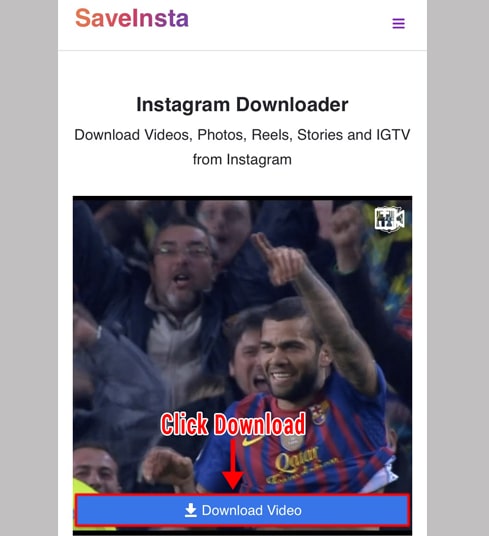
Step 3: Once the video details appear, tap the Download Video button.
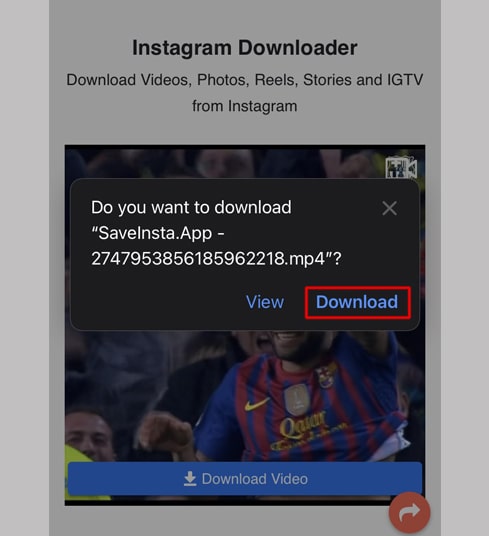
Step 4: A confirmation popup will be shown; tap Download to proceed.
Step 5: Tap the download icon in the top right corner of Safari to view the progress.
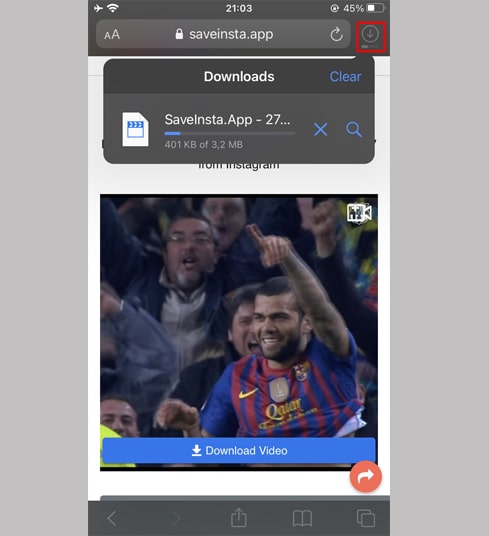
Step 6: After the download finishes, open the Files app and go to the Downloads folder.
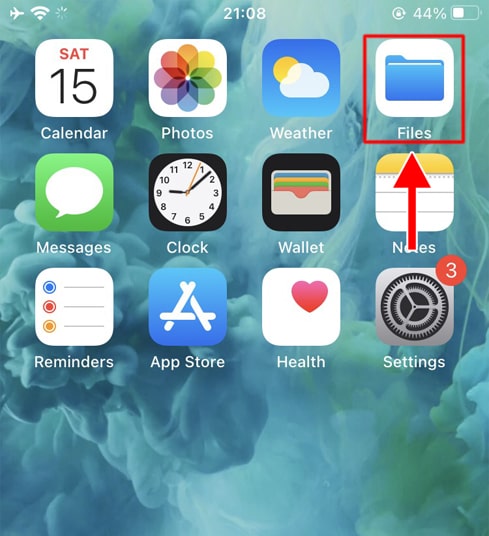
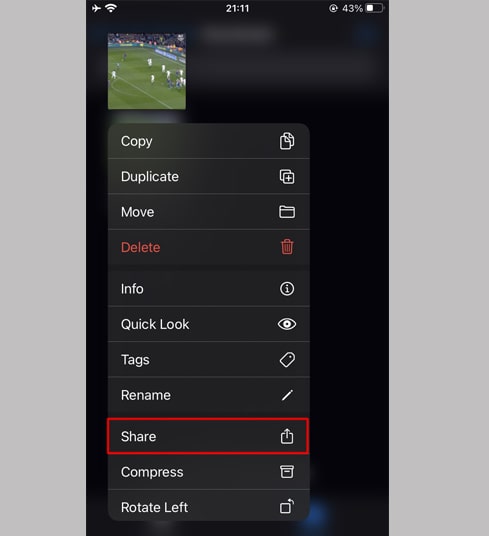
Step 7: Long-press the video file to bring up the menu and tap Share.
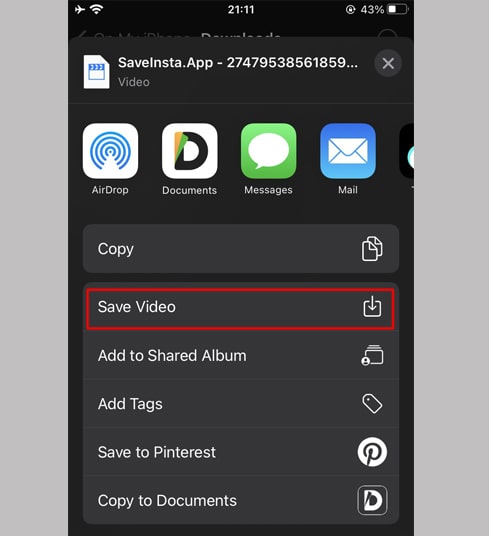
Step 8: Select the Save Video option.
Step 9: Your video is now available in the Photos app.
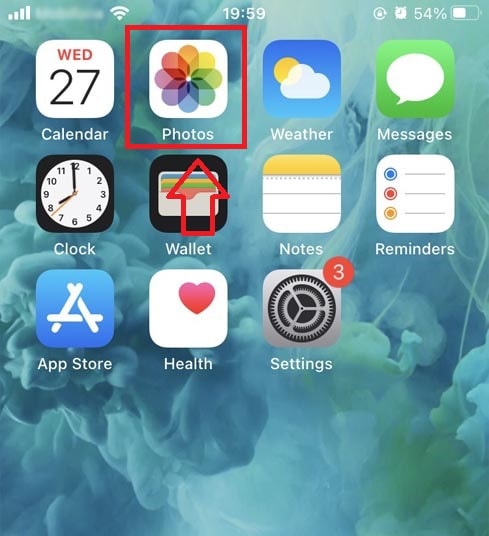
Method 2: Method for iOS 12 and older: Using "Documents by Readdle"
For older iOS versions that lack a built-in download manager, Documents by Readdle acts as a free, powerful file manager to help you save Instagram media.
Step 1: Install and open the app
- Open the App Store on your iOS device and search for Documents by Readdle.
- Once installed, launch the Documents app.
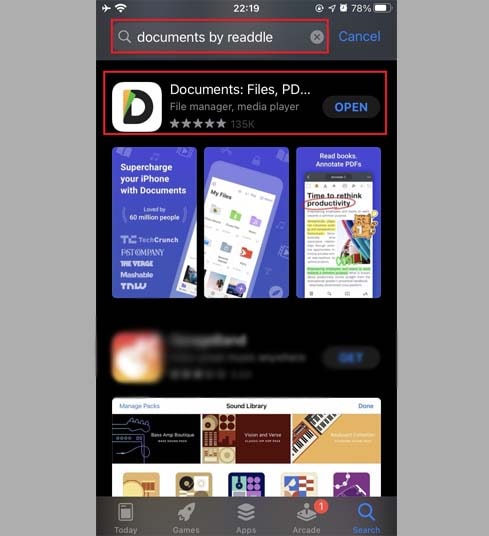
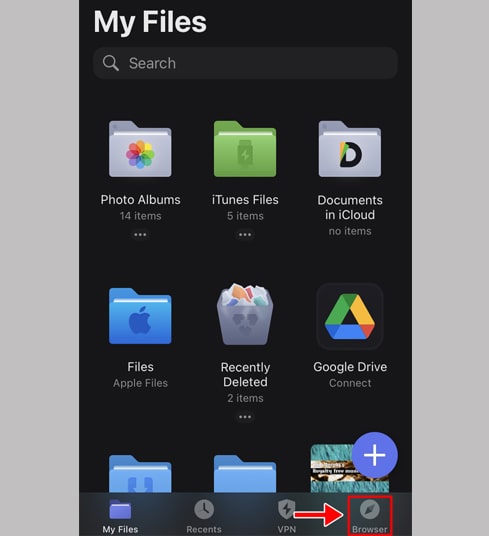
Step 2: Visit IG-Downloader.to within the Documents app
In the Documents app, tap the built-in browser icon (resembling a compass, located at the bottom right for iPhone or the left menu for iPad) to open the web view.
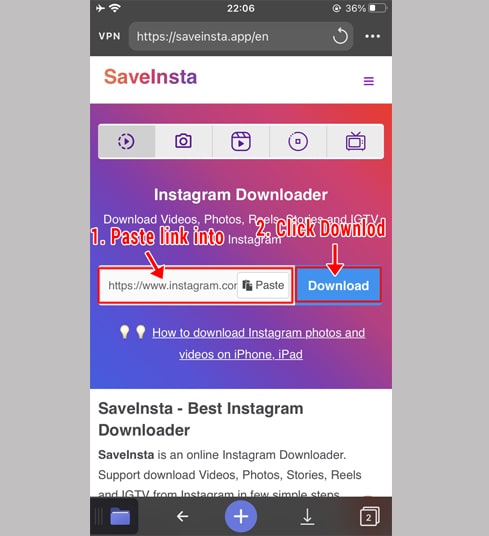
Step 3: Paste the Instagram video link into the box and press Download.
Step 4: Once the video details appear, tap the Download Video button.
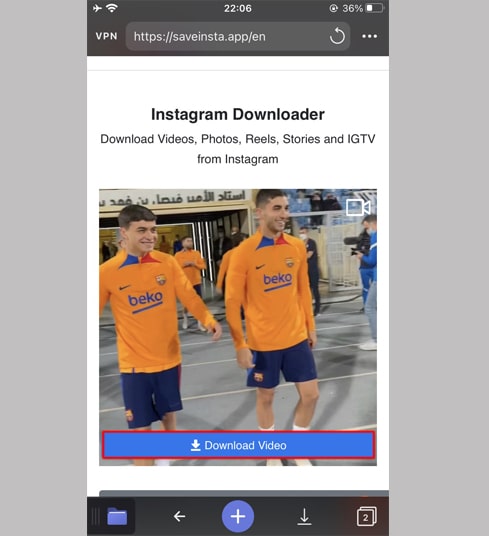
Step 5: You can rename the video file if desired, then tap Done to save it to the app's memory.
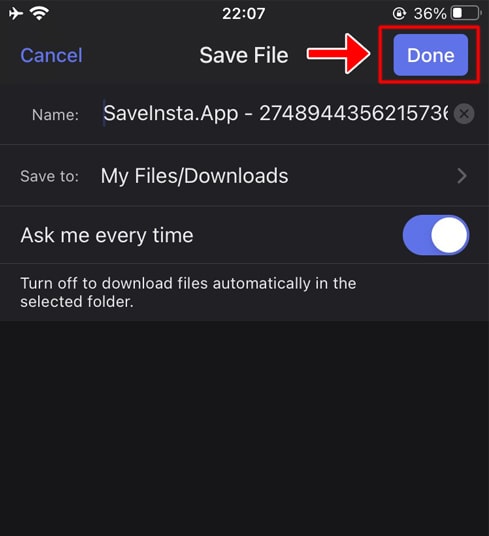
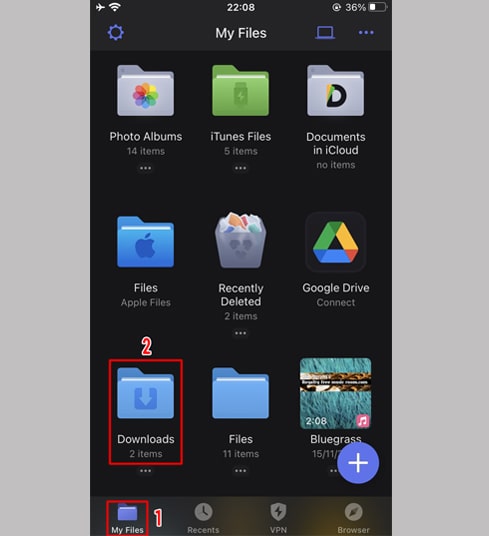
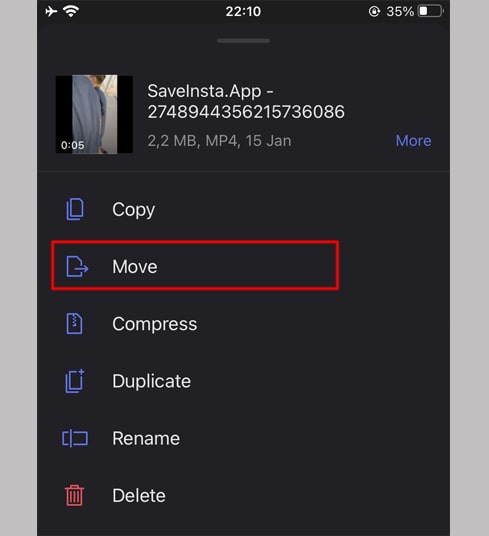
Step 6: Transfer the video to your Photos library
- Tap the My Files icon at the bottom of the screen to manage your downloaded content.
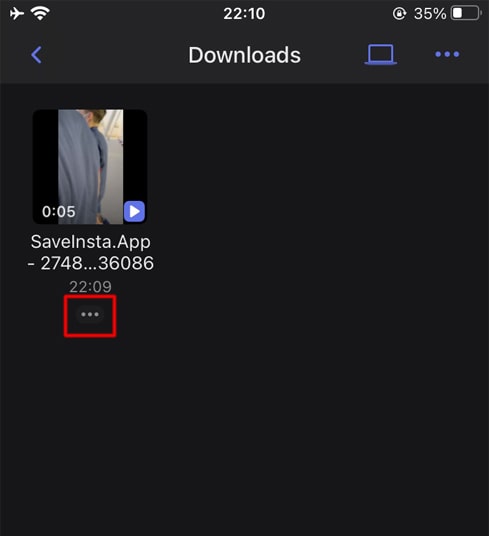
- Open the Downloads folder, tap the three dots below the video, then select Move → Photos. You can now view the video offline in your device's library.
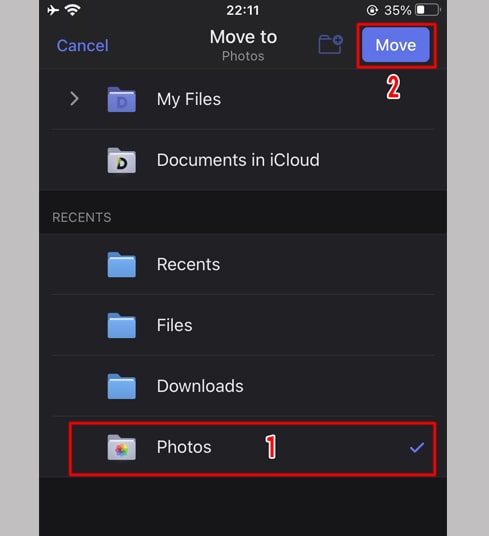
Step 7: Your video is now available in the Photos app.
If you encounter any issues during use, please feel free to contact us for immediate support. We are always here to help!